The Hosting Mill

Hosting guides · plain-language explainers

Practical web hosting guides from the test bench

Uptime, speed, migrations, SSL, DNS, backups — explained with what we actually see when we test hosts, not what a brochure promises. Each guide is short enough to read in one sitting and specific enough to act on.

Guide 01 · Reliability

Reading uptime numbers without being fooled

Uptime is the share of time a website responds. It is the most quoted number in hosting marketing and one of the most misunderstood. Here is how to read it properly.

What the percentages really allow

99.9% uptime permits roughly 43 minutes of downtime a month, or close to nine hours a year. 99.99% cuts that to about four minutes a month. The jump from “three nines” to “four nines” is far bigger than the decimals suggest.

Why the guarantee is not the same as the result

An uptime guarantee is a refund promise, usually a small credit, not a technical commitment. Many guarantees exclude scheduled maintenance and outages the host considers outside its control. Read what is excluded before trusting the number.

Which downtime actually hurts

Ten one-minute outages spread across a month are barely noticed. One ten-minute outage during your busiest hour can cost orders and search crawls. In our tests we record the longest single outage as well as the total.

How to monitor your own site

Use an external uptime monitor that checks every minute from more than one location and alerts you by email or message. Keep the history: it is your evidence if you need to claim a credit or decide to move.
On the test bench: we check every test site once a minute from several regions and only count an outage when at least two locations agree, which removes false alarms from a single bad network route.
Printed analytics report with charts beside a laptop

In this guide

Laptop with code open on a desk

In this guide

Guide 02 · Performance

What a fast WordPress host really changes

Speed tests can make any host look good or bad depending on how they are run. These are the parts of speed that the server is genuinely responsible for.

Time to first byte (TTFB)

TTFB is how long the server takes to start sending a page. It reflects server hardware, PHP version, database speed and caching. For uncached pages, a consistently low TTFB is the clearest sign of a well-run host.

Page caching

Caching stores a ready-made copy of a page so the server does not rebuild it for every visitor. Server-level caching is typically faster than plugin-only caching, but it must be configured to skip carts, checkouts and logged-in users.

PHP workers and concurrency

Each PHP worker handles one uncached request at a time. A site with two workers and ten simultaneous shoppers queues the other eight. This is why a site can feel fast for one tester and slow on launch day.

What the host cannot fix

Oversized images, heavy page builders and dozens of plugins slow a site on any server. Our test site is deliberately ordinary so the host’s contribution stays visible.

Guide 03 · Moving hosts

Moving a website without losing a day

Most migrations go wrong at the DNS step or with email, not with the website files. This checklist follows the order we use when we move our own test sites.

1. Take a full backup you have tested

Download the files and database, and restore them somewhere first — a staging site or a local copy. A backup that has never been restored is a hope, not a backup.

2. Build the site on the new host first

Upload files, import the database and update configuration while the old host still serves visitors. Preview the new copy using a temporary URL or a local hosts-file entry.

3. Lower the DNS TTL a day early

Reducing the time-to-live on your DNS records to a few minutes the day before makes the switch take effect quickly and lets you roll back fast if needed.

4. Move email deliberately

If email is hosted with the old provider, recreate mailboxes on the new one and plan the MX record change separately. Keep the old mailboxes for a week to catch late messages.

5. Switch, then watch for 48 hours

Change the DNS records, issue the SSL certificate on the new host, and watch error logs, forms and checkout. Cancel the old plan only after a quiet week.

Hands typing on a laptop showing code

In this guide

Glowing circuit board representing encrypted connections

In this guide

Guide 04 · Security basics

SSL certificates without the jargon

The padlock in the address bar means the connection between the visitor and your server is encrypted. Every site needs it, and on most hosts it should cost nothing.

Free certificates are the norm

Most hosts issue free certificates automatically and renew them every few months. Paid certificates add organisation validation and warranties but do not make the encryption stronger.

Mixed content warnings

If a secure page loads an image or script over plain HTTP, browsers show a warning or block it. After enabling SSL, update internal links and force HTTPS with a redirect.

Renewal failures

Automatic renewal can fail after DNS changes or when a site is behind a proxy. A monitor that warns you a week before expiry prevents an embarrassing browser error.

Guide 05 · For VPS beginners

Five command-line habits for your first VPS

Moving to a VPS often means opening a terminal for the first time. These habits prevent the most common self-inflicted problems we see.

Use SSH keys, not passwords

Key-based login is both safer and more convenient. Once it works, disable password login for the root account.

Update before you install anything

Apply operating-system updates first, then reboot if the kernel changed. Schedule automatic security updates.

Turn on a firewall

Allow only the ports you need — usually SSH, HTTP and HTTPS — and block everything else by default.

Snapshot before big changes

Take a provider snapshot before upgrading PHP or the database. Restoring a snapshot takes minutes; rebuilding from memory takes days.

Write down what you change

Keep a plain text log of every command and setting you change. It turns a confusing outage into a five-minute fix.
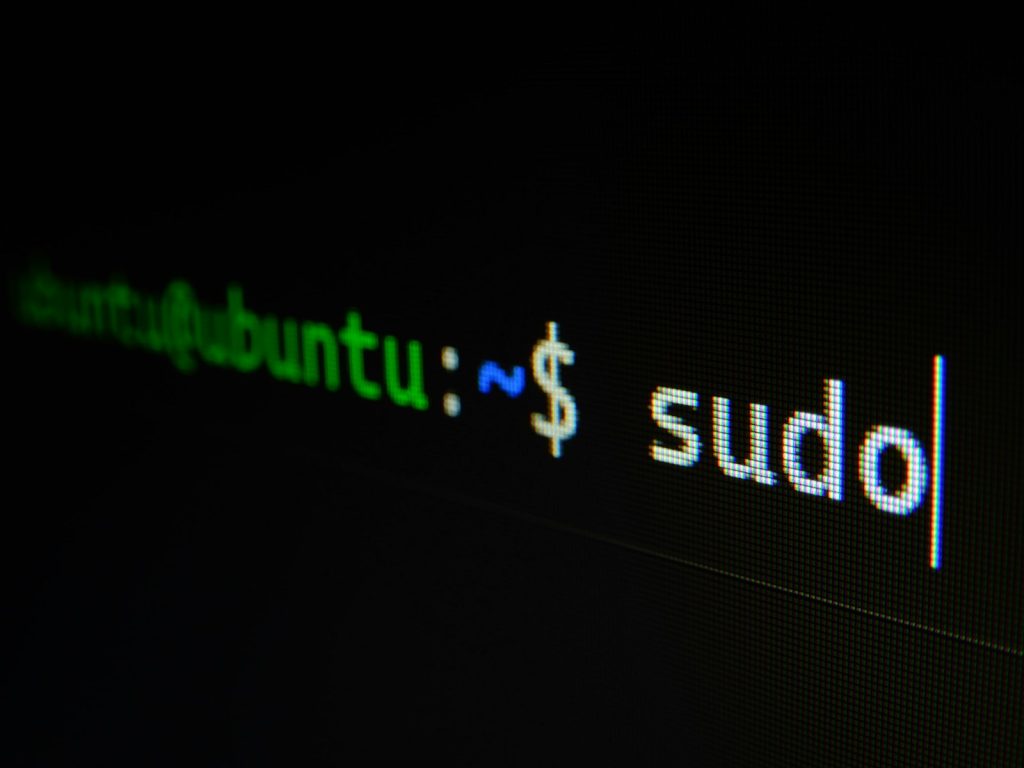
Linux terminal prompt on a dark screen

In this guide

§ Glossary

Hosting terms in one sentence each

Bookmark this list. Most hosting comparisons stop being confusing once these terms are clear.
The amount of data your site can send to visitors in a month.
A network of servers around the world that keeps copies of your images and files close to visitors.
The system that turns your domain name into the address of the server hosting your site.
One file or folder on the server; many plans limit how many you may have.
A private copy of your website for testing changes before they go live.
The percentage of time your site is reachable.
Time to first byte — how long the server takes to begin answering a request.
The dashboard used to manage files, databases, email and domains on a hosting account.

Have a hosting question we have not covered?

Send it in. Questions from readers regularly become new guides.